01 / Find
Describe the thing you need.
Search "something for sore muscles" to find the massage gun and its box.
Natural-language search · connection requiredPhotograph items one after another while the app writes each entry in the background. Later, search what you remember and open the right box.
Moving day, panic clean or backlogged shelf: pick a box once and keep shooting.
Pick a bin once and photograph each item as it disappears.
Set Box 14 once, photograph what goes in, and find the kettle later.
Photograph tools, parts and cables while the app writes behind you.
Capture the pile now. Review the finished list later.
Choose the room, shelf, drawer or moving box once. It stays selected for the whole burst.
Take one photo per item as you pack. Set a quantity or category without leaving the camera.
Each photo is saved first, then the app names the entry in the background. Review the session when you are ready.
Each photo uses one scan. Using your own AI key? Fire & Forget is a one-time purchase.
Print it. Stick it. Scan later to see what is inside.
Search "something for sore muscles" to find the massage gun and its box.
Natural-language search · connection requiredOne photo drafts the name, brand, description, specs and tags. Review and save.
One photo · one scan · you approve the resultUse one photo for several objects, read a field from a label, or type it yourself.
Lay several things out, take one photo, and it drafts a row for each. Review the batch, then save it. However many things are in frame, one photo is one free scan, or 2 credits.
Read price, expiry date, purchase date, serial number or ID number from a tag, receipt or plate.
Select several fields if needed. One photo still counts as one scan.
Add anything without a photo, AI, account or connection. Photos already on your phone work too.
Use an Area, a Spot and one optional Sub-spot. Move a Spot under another later and everything inside moves with it.
Garage
A room, a garage, a storage unit.
Metal cabinet
A cabinet, a shelf, a wardrobe.
Second drawer
Its own name, its own photo, its own QR label.
Cordless drill
Garage › Metal cabinet › Second drawer
That is the complete location path, so every result stays quick to read.
Keyword search stays offline. When a typed search has too few exact matches, the app tries meaning after you pause. That fallback needs a connection.
Describe the job instead of naming the item.

Pick one of the queries, or type your own description of a tool, a cable or a charger.
Example results from a small demo inventory. In the app, Smart Find searches your own items and needs a connection.
Items, locations and photos live on your device. Adding, browsing, editing, keyword search and QR labels work offline with no account.
The AI shortcuts need a connection and send only the input needed:
Smart Scan + Fire & Forget
Each photo you choose goes up so the item can be described.
Smart Find
Item text builds the meaning index. Photos never go up for this.
Field scan
The tag, receipt or plate photo you choose goes up.
Sign-in is optional. It enables backup, sharing and a larger free scan allowance.
Opt-in backups go to a private folder in your own Google Drive.
Off until you sign in and opt in. It counts feature use, never inventory contents.
Share & Forget keeps encrypted content in your Google Drive, including the inventory name. Classic keeps encrypted content on our server, but its inventory name is readable to us.
Cloud AI uses Koala Credits. Manual and offline features do not.
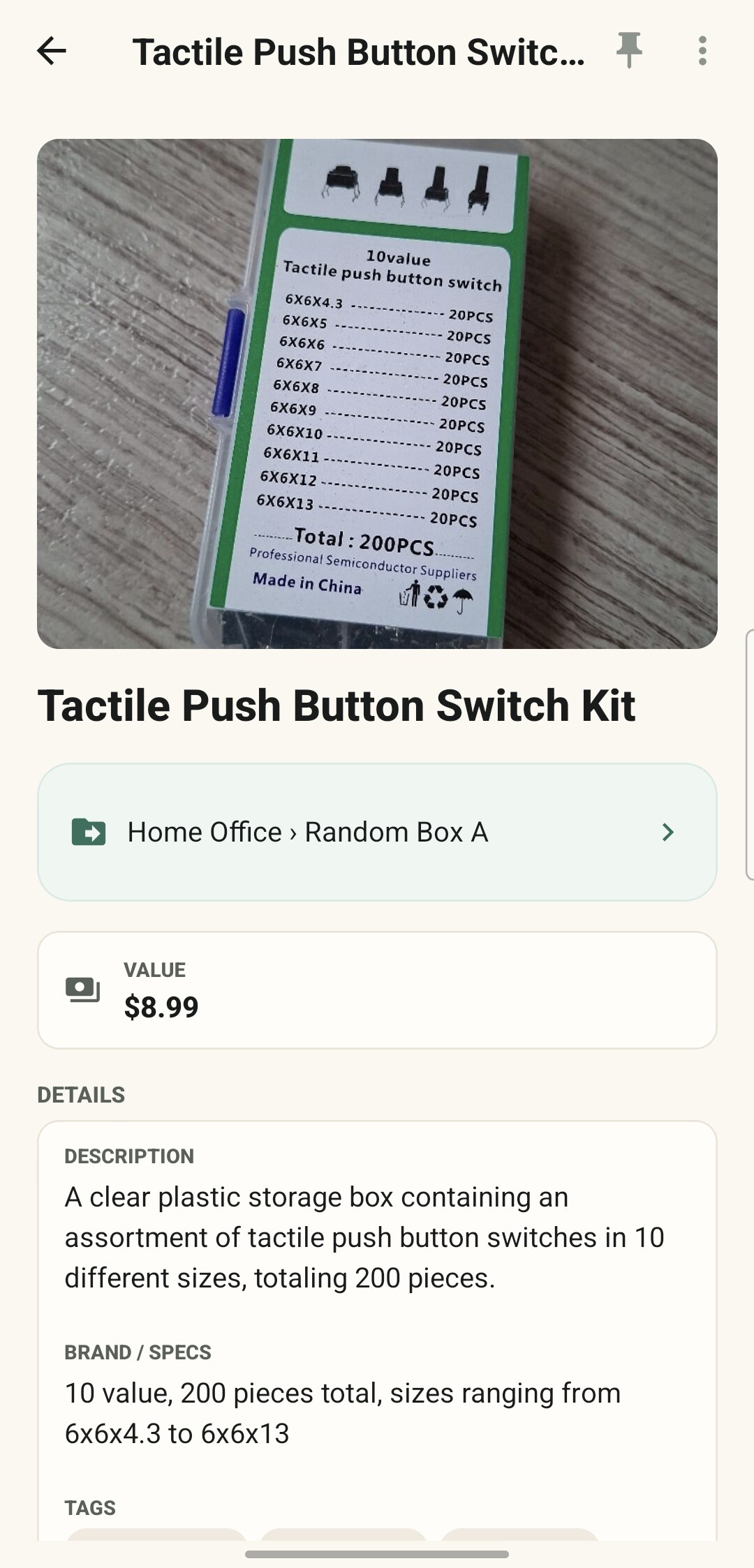
Value150+ world currencies; each one totals separately.
DatesExpiry flags and local reminders.
PaperworkReceipts, warranties, manuals and photo-to-PDF.
Your fieldsReuse labels such as model, serial or warranty.
You can also set a restock point and turn low supplies into a shopping list. Values are your records, not an insurance valuation.
Make a trip list from what you own, see where each thing lives, and check what comes back. Save a template for next time.
Tick off what you buy and update the shelves when you finish. Past shopping trips keep what you bought and what you paid.
Actual PDFs made with the app's current export templates and sample inventory.
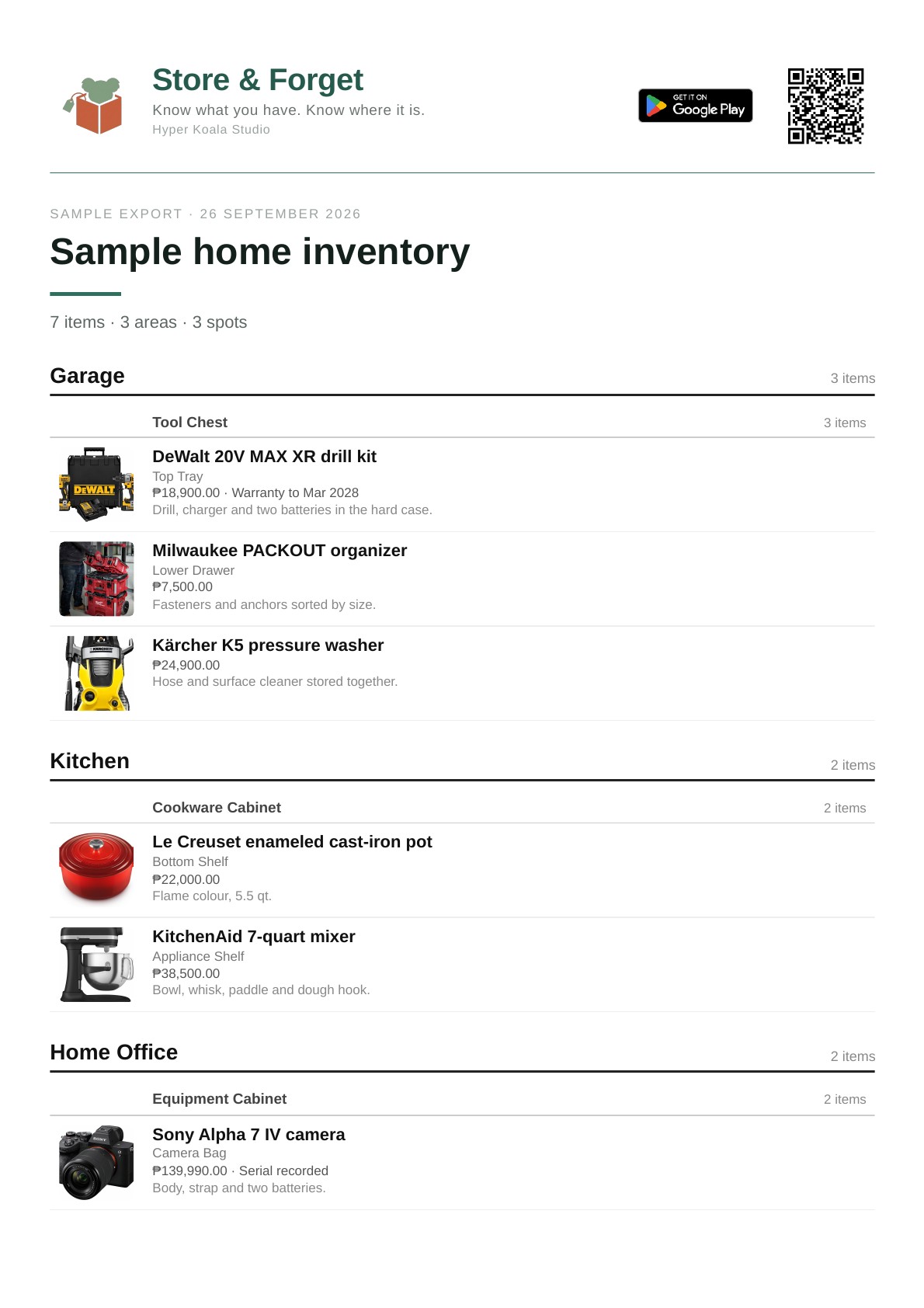
Compact rows with photos, grouped by Area and Spot.
Open sample PDF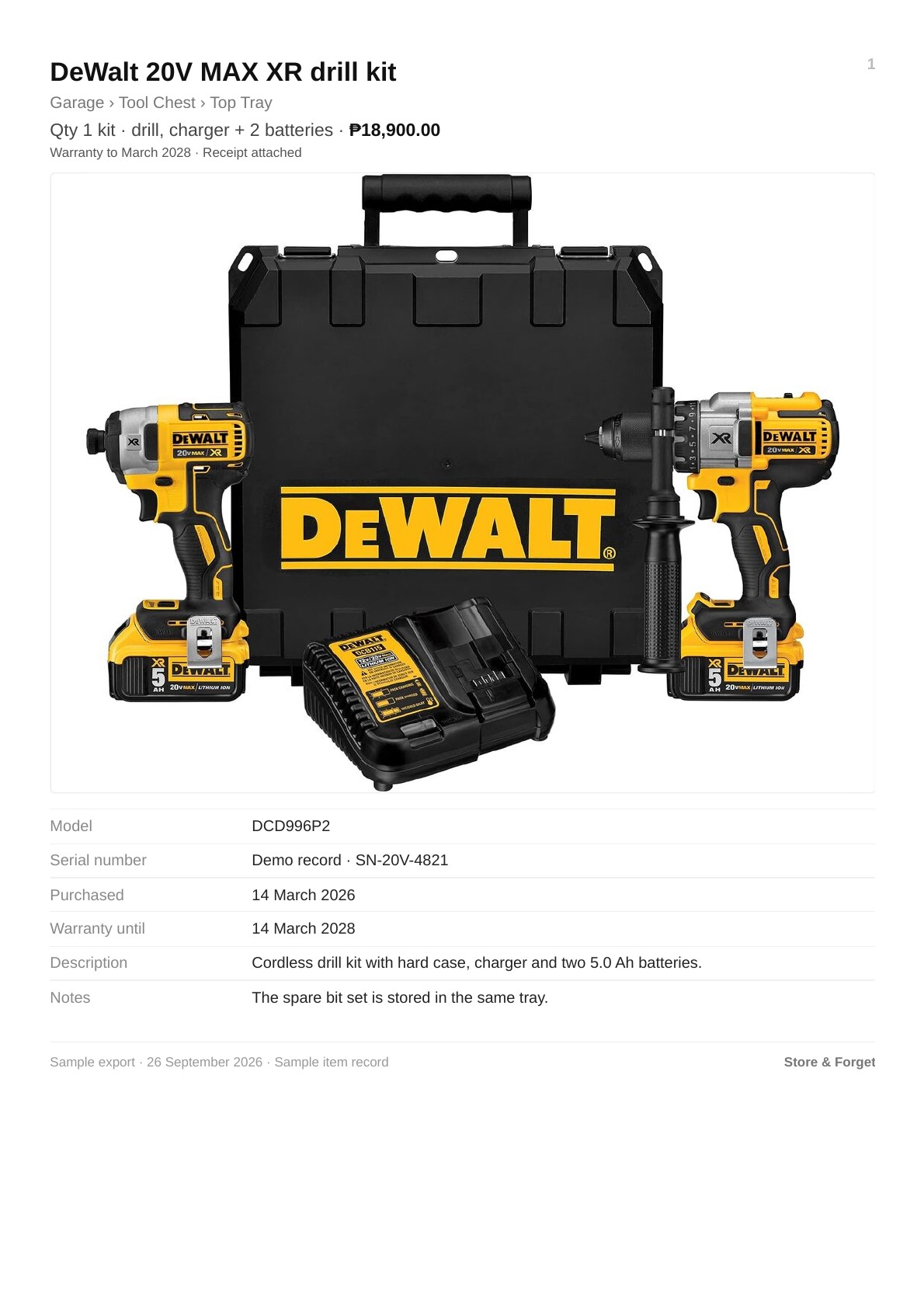
Large uncropped photo, exact place, value and every included field.
Open sample PDFBring a list in.csv or .xlsx
Take the data out.xlsx + organized photos
Choose the scopeWhole house, one place, or a filtered list
Private stays privateSensitive fields stay out until selected
Already have a spreadsheet? Bring in a CSV or Excel list with column mapping, a pre-flight check and duplicate handling.
Large exports split into numbered volumes of about 20 MB. Export creates records, not a cloud backup or certified insurance document.
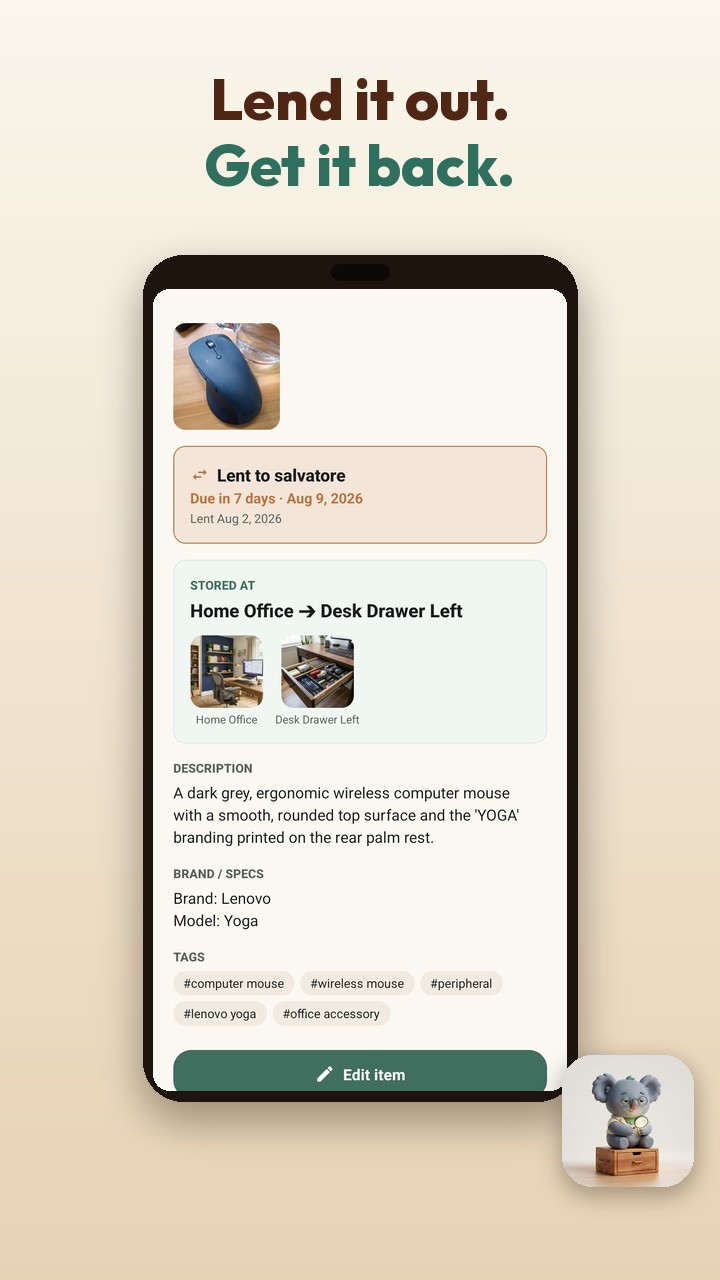
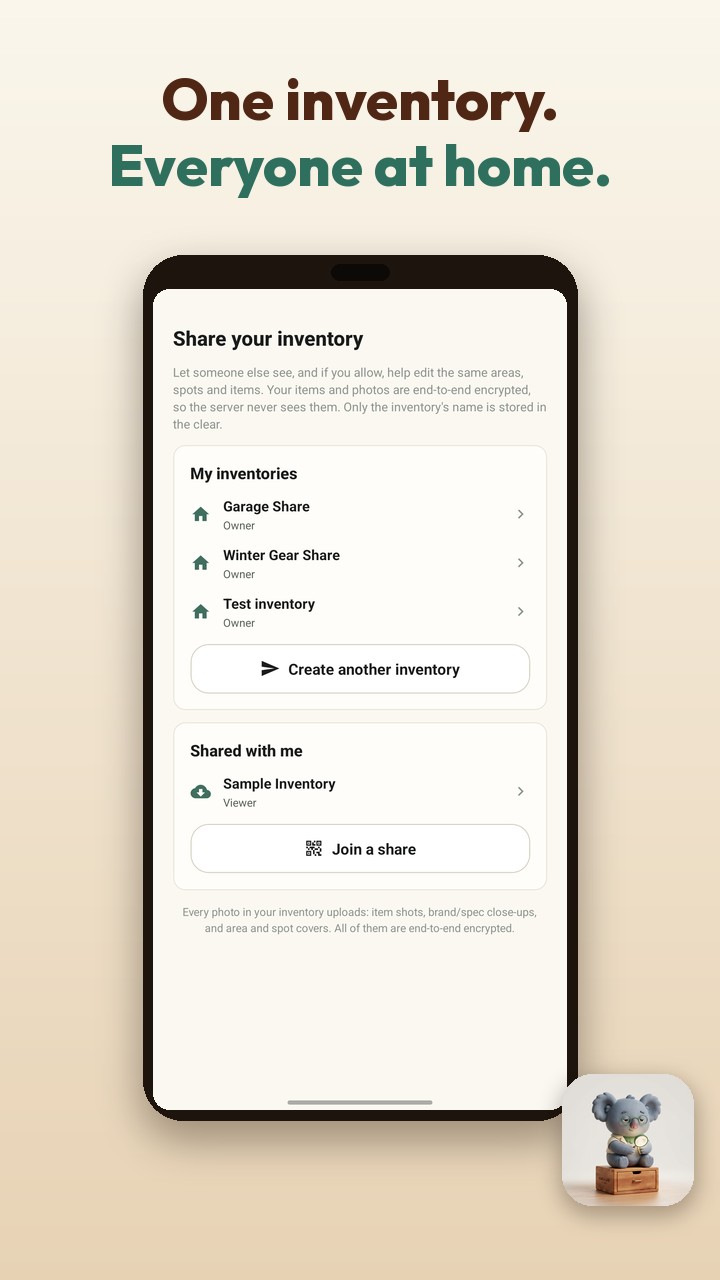
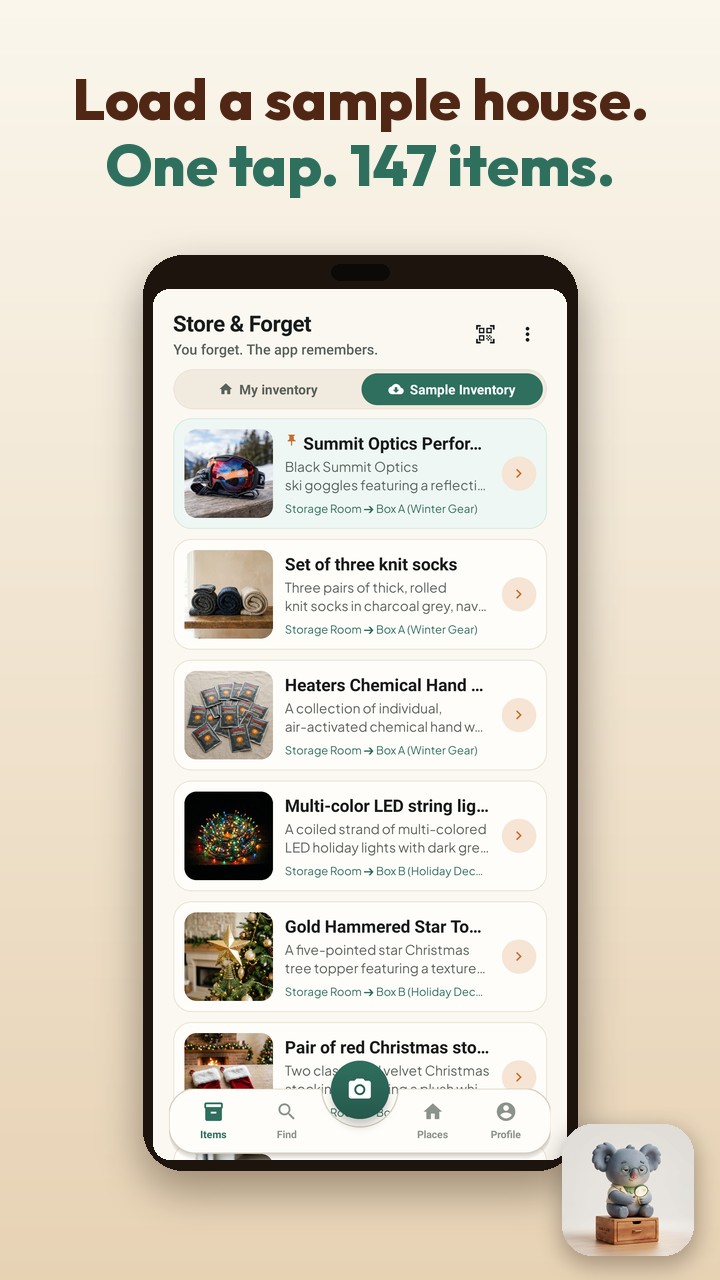
Browse and search 147 photographed items across 7 Areas and 49 Spots.
No. Install it and start cataloguing. Adding items, browsing and keyword search all work with no sign-up at all.
Signing in with Google is optional and enables cloud backup, sharing, and a larger free allowance for AI scans.
Your inventory is on your device, so adding, browsing, editing and keyword search all work with no connection.
Smart Scan, Fire & Forget, Smart Find and printed-detail scanning use cloud AI, so those features need a connection.
The app is free on Google Play, and everything you do by hand is free forever: adding items, organizing, keyword search, QR labels, lending, prices, expiry dates, attachments, your own fields, and restoring what you deleted.
Cloud AI features use Koala Credits. You get a few to try before signing in and a larger lifetime allowance once you do. After that you can buy more or earn one by watching an ad. In Fire & Forget, each photo counts as one scan.
Load the Sample Inventory: an example household of 7 Areas, 49 Spots and 147 items with photos, in one tap. Search it, browse it, get a feel for how Areas and Spots hang together.
The sample is read-only and removes in one tap. It is about 26 MB and needs a connection, but not an account.
Take a photo and the app drafts the name, brand, description, specs and tags. Review the details, choose the Spot and save.
Two ways, depending on the mess in front of you.
Multi-item Smart Scan: lay several things out, take one photo, and it drafts a row for each. Review the batch, then save. One photo is one free scan, or 2 credits.
Fire & Forget: burst mode. Keep shooting and every photo becomes its own item, saved first and named in the background.
Edit any field by hand, any time. Or rescan and let it have another go, which helps when the first photo was dark or the label was turned away.
A rescan is a fresh scan, so it costs one. Editing by hand is always free.
No. The scanner reads our QR Location Labels and share invites, not retail product barcodes, and there is no product database behind it. Smart Scan identifies things from the photo itself.
Printed text, yes, in one narrow way: it reads price, expiry date, purchase date, serial number or ID number from one cropped photo. It does not transcribe a manual or import a receipt line by line.
Four levels. An Area is a room, a garage, a storage unit. A Spot inside it is a cabinet, a shelf, a wardrobe. A Sub-spot inside that is a drawer, a tray or a box, and it is optional. Items live in Spots or Sub-spots.
The ladder stops there. One level of Sub-spot, no folders, no unlimited nesting. Nothing you already stored has to move: existing Spots stay as they are until you split one.
Yes. Generate a printable QR label for a box, shelf or drawer from your phone, stick it on, then scan it to see what is inside without opening it.
Printing uses the normal Android print dialog, with Avery 5160, Avery 5163 and 4 x 6 layouts. Print one place, or include a box and every drawer inside it in one run.
Nothing vanishes. The Items screen counts what has no place yet and marks it on the photo, and tapping that count shows you just those, so you can file them in one pass.
That count is one of four things gathered on the Loose ends screen, along with anything still waiting for a name, a loan that has gone past its date, and something that has expired. Every row opens straight to the item so you can fix it.
Type first. If the keyword search finds fewer than two literal matches, the app falls back to meaning after you pause. It never suggests anything before you search, and the fallback needs a connection.
Deleted items, Spots and Areas sit in Recently deleted for 30 days. Restore them until then, or empty the screen yourself when you are sure.
Yes. On a tablet, or any phone held in landscape, it opens into a two-pane layout with a side rail instead of stretching the phone screen. Same app, no separate download.
Yes: a summary PDF grouped by place, a detailed PDF with a full page per item, or an .xlsx spreadsheet beside a photos folder that mirrors your Areas and Spots.
Export the whole house, one Area, one Spot with everything under it, or just what the Items screen is showing you. Anything you marked private, prices included, is held back unless you tick the switch that puts it in.
The detailed PDF is useful for an insurance claim, an estate or a move. Acceptance varies by insurer. Export creates documents; backup is the separate copy stored in your own Google Drive.
If you turned on backup, sign in on the new phone and your inventory comes back, photos included.
The backup goes to a private folder in your own Google Drive. Your Drive, your account, your storage. It is off until you sign in and switch it on, and you choose how often it runs and whether it waits for Wi-Fi.
Share & Forget keeps the shared inventory in the owner's Google Drive. The owner buys a one-time unlock; invited viewers and editors join free. Android and Google sign-in are required; invited members also need the Google Drive app. The inventory name is encrypted along with its contents.
Share & Forget Classic keeps encrypted item content on our servers and uses Koala Credits for photo and file uploads. Its inventory name is stored in plain text. Both options let you choose which Areas to share and whether someone can view or edit them.
Your main inventory database lives on your device, and optional backup goes to your own Google Drive.
Share & Forget stores the encrypted shared inventory in the owner's Google Drive; our server keeps membership records, not the items or photos. Share & Forget Classic stores encrypted shared content on our servers, apart from its plain-text inventory name. Cloud AI requests also pass through our server on their way to the AI service, and we do not retain their item content.
Signed-in users see in-list ads after ten scans. Logged-out trial users do not; accounts using their own AI key see them immediately.
A one-time Remove ads purchase is available. Buying credits does not remove ads.
Eighteen: English, Spanish, Italian, German, French, Dutch, Portuguese, Polish, Turkish, Russian, Indonesian, Japanese, Korean, Chinese, Tagalog, Hindi, Vietnamese and Thai. It follows your phone by default, or you can choose one in Profile.
Translations are machine-produced and reviewed rather than native-speaker localized. If something reads oddly in your language, tell us and we will fix it.
Store & Forget is available on Google Play for Android. The App Store version for iPhone and iPad is coming soon. There is no public web app.
Something we did not cover? Ask us directly.
Add by photo or by hand, then find the exact box later. Free to install on Google Play, with no sign-up needed to start.
Android now · iPhone & iPad coming soon
18 languages · 4 themes